How it works
From sign-up to your first published video — step by step. Pick a step to open it.
Step 1 of 11
Create your account
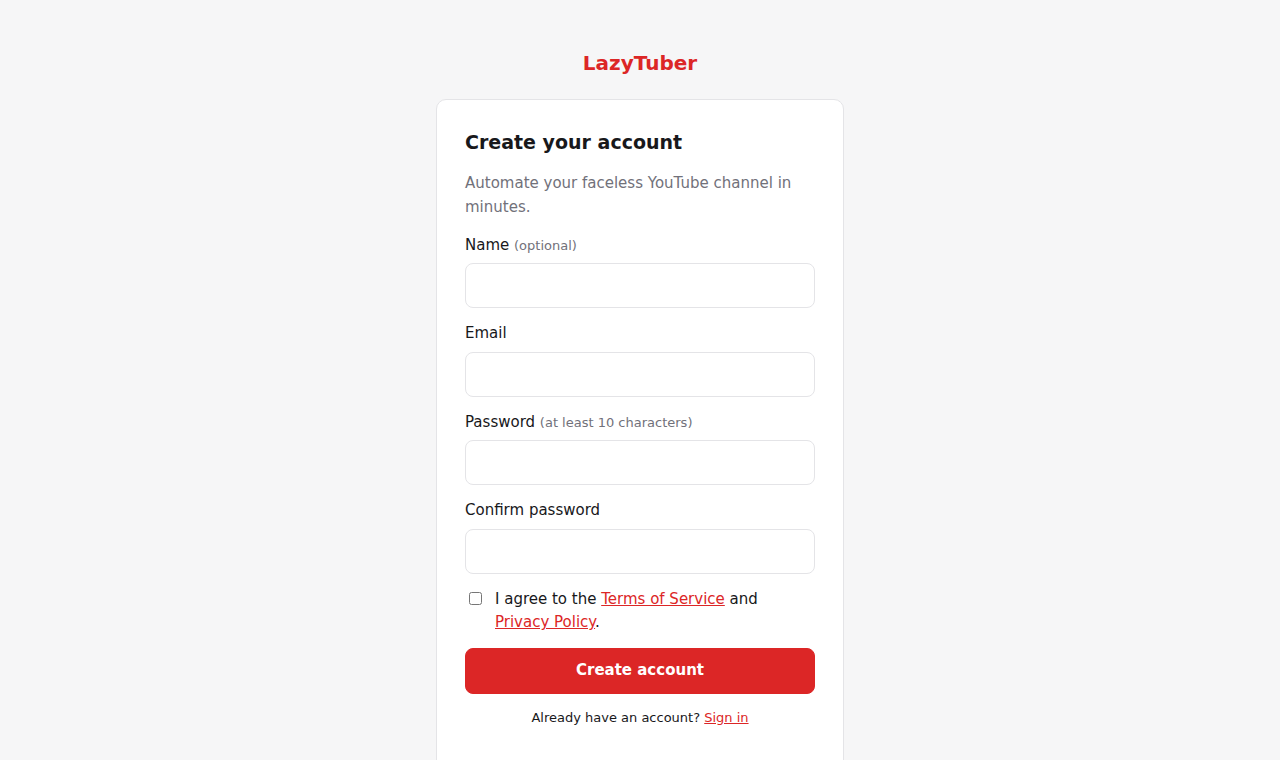
Go to Get started, enter your email and a password (at least 10 characters), accept the Terms and click Create account.
We send you a confirmation email — open it and click the link. Until the email is confirmed you can sign in, but you can't choose a plan or connect a channel.
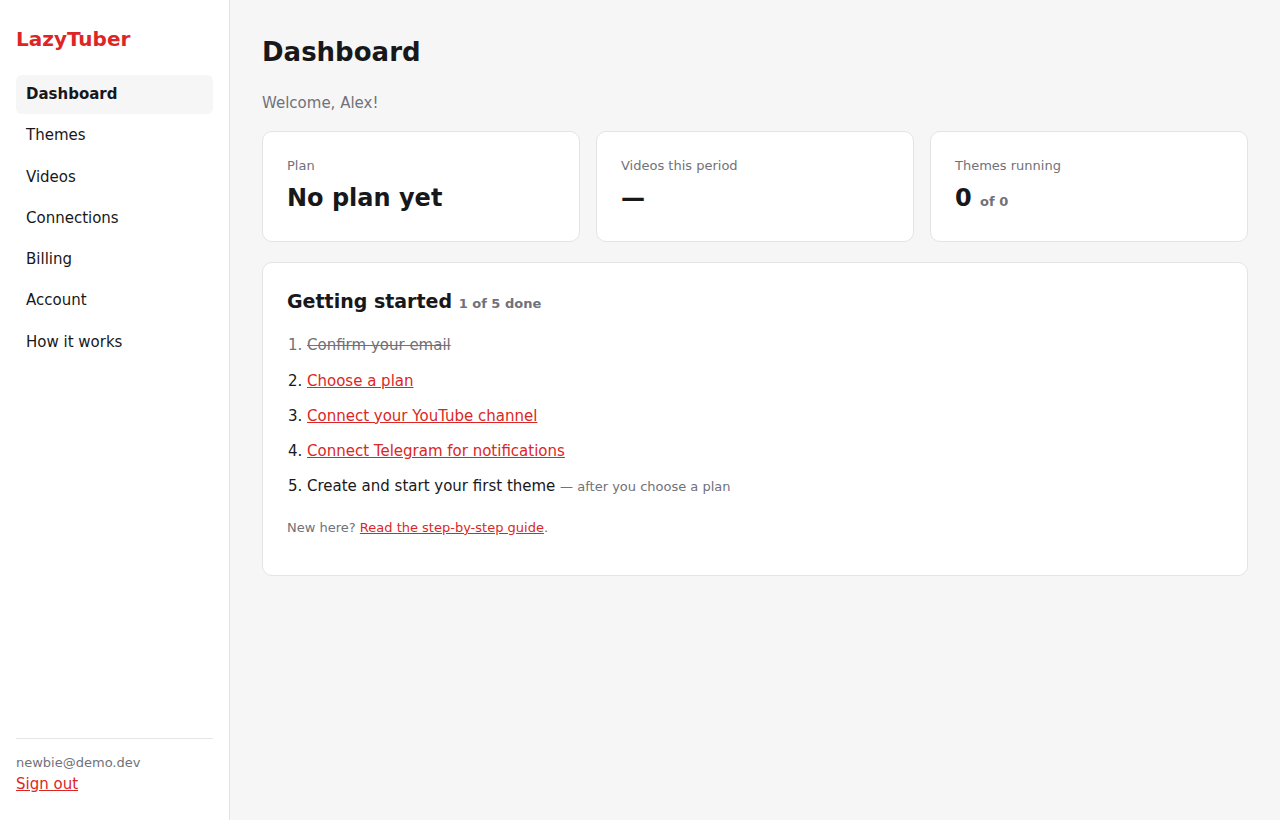
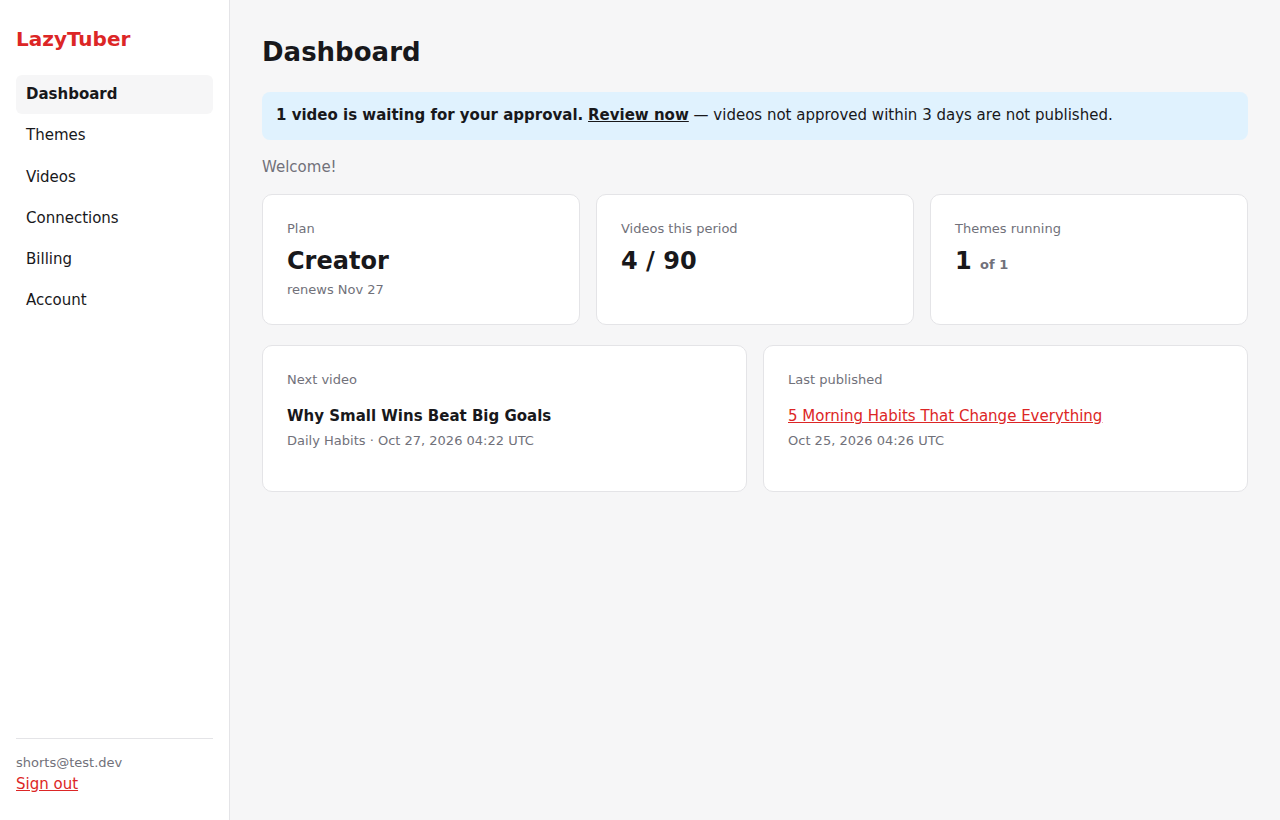
After signing in you land on the Dashboard. Its Getting started list shows what is left to do — this guide follows the same order.
Step 2 of 11
Try it for $1 or choose a plan
Open Billing. You have two ways to start:
The $1 trial
3 real videos on your own channel in 3 days, 1 topic, 1 channel. Connect your YouTube channel first (step 3) — the trial videos are published to it. Then pick one of two options:
- Start trial — then Starter. $1 today; when the trial ends your Starter plan starts automatically. We remind you a day before, and you can turn the continuation off any time in Billing.
- Just the videos for $1, no subscription. One payment; nothing is charged afterwards. If you like the result, choose a plan yourself.

A monthly plan
Plans differ by the number of videos per month, themes, YouTube channels, how many videos a day a theme may publish and how many Shorts are cut from each video. Payment is handled by Stripe; taxes are added at checkout where they apply.
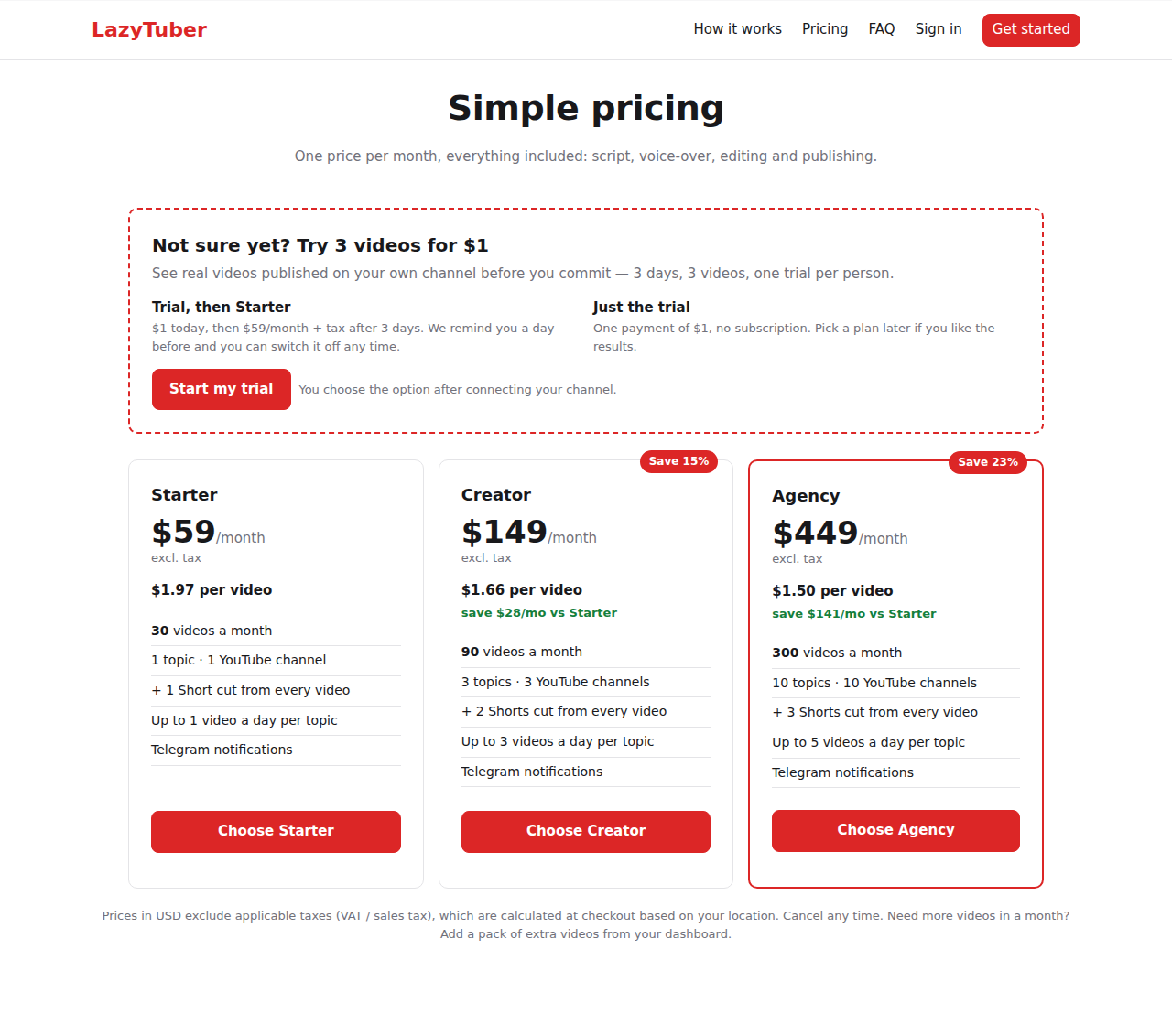
Unused videos don't roll over to the next month. Need more in a month? Buy an extra video pack in Billing (step 11).
Step 3 of 11
Connect your YouTube channel
Open Connections and click + Connect channel. Google asks you to sign in and choose the channel (a brand account works too), then shows the permissions we request:
- upload videos to your channel;
- read basic channel info (name, ID) so we can show it in your dashboard.
We never delete, edit or read your existing videos, comments or analytics.
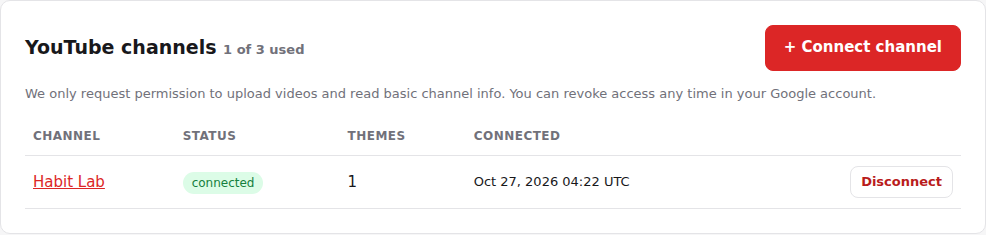
- Your plan sets how many channels you can connect (shown as “1 of 3 used”).
- A channel belongs to one account at a time.
- Disconnect pauses the themes that publish to this channel. You can also revoke access in your Google account at any time; if access is lost we pause the themes and tell you — click Reconnect to continue.
Step 4 of 11
Connect Telegram (recommended)
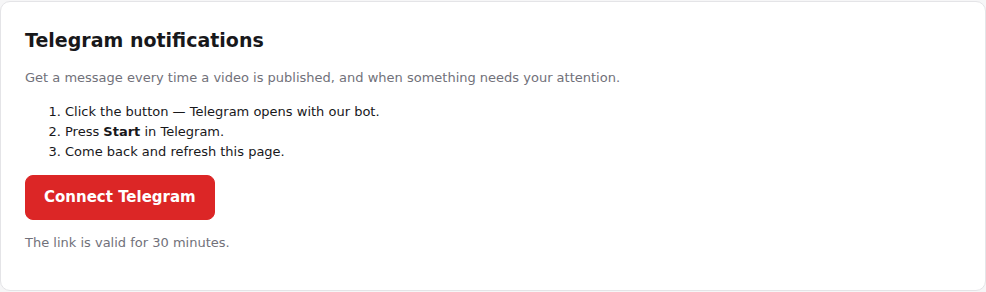
Telegram is how we tell you that a video went live, ask you to approve a video (step 9) or warn you about a problem. It takes a minute:
- In Connections click Connect Telegram — Telegram opens with our bot.
- Press Start in Telegram.
- Come back and refresh the page — it now says connected. Click Send test message to check.
Without Telegram you still get the important messages (approval requests, payment problems) by email.
Step 5 of 11
Create a theme
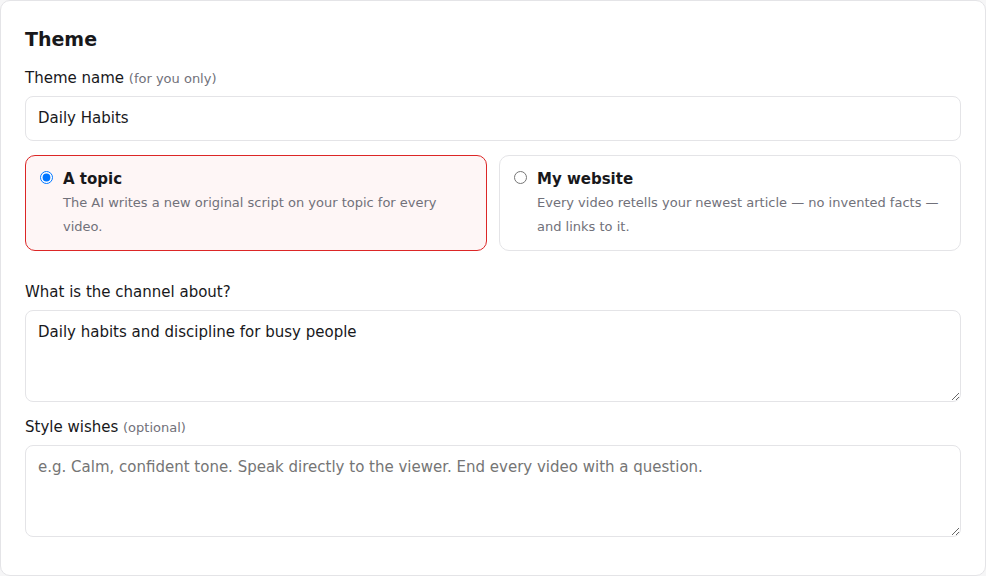
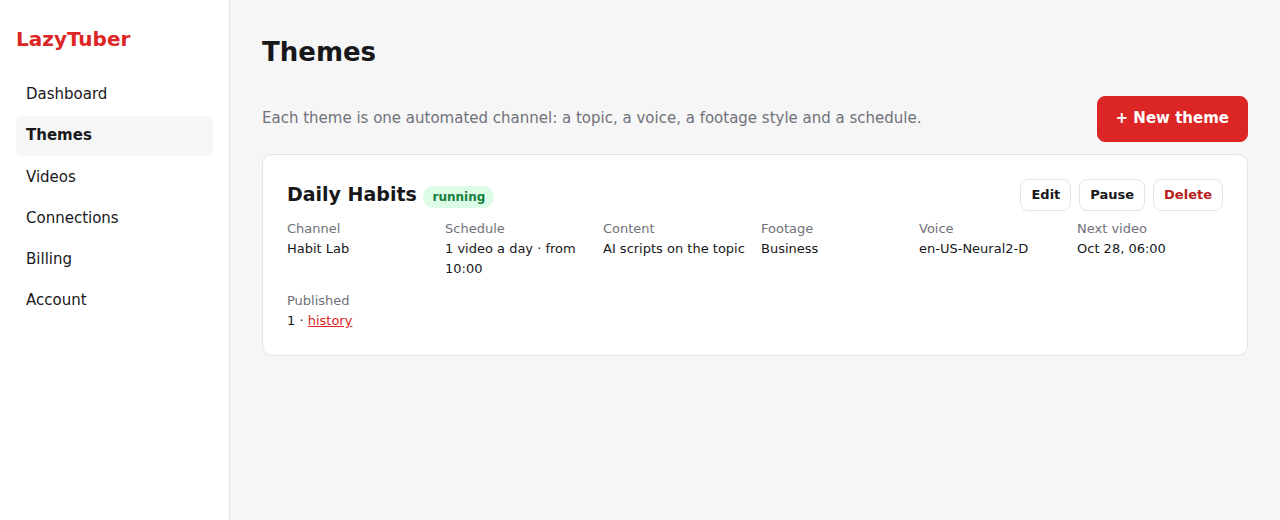
A theme is one automated show: what the videos are about, how they look and sound, and when they are published. Open Themes → + New theme.
First choose where the content comes from:
- A topic — the AI writes a new, original script on your topic for every video. Describe the channel in What is the channel about? and, if you like, add Style wishes (tone, how to end each video…).
- My website — every video retells your newest article; see the next step.
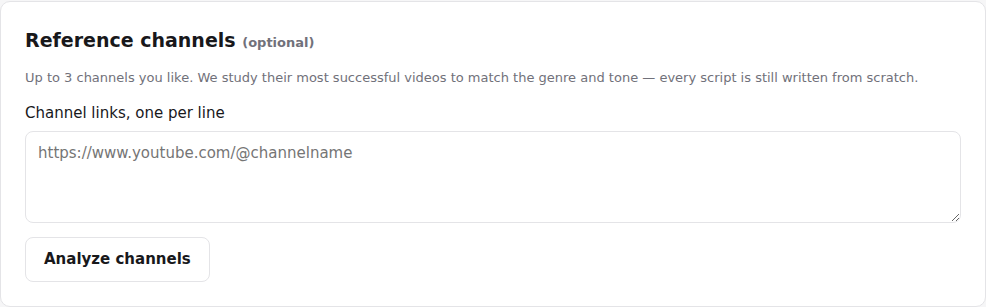
Reference channels (optional, topic mode)
Paste up to 3 YouTube channels you like and click Analyze channels. We study their most successful videos to match the genre and tone — every script is still written from scratch, nothing is copied.
Step 6 of 11
“My website” mode
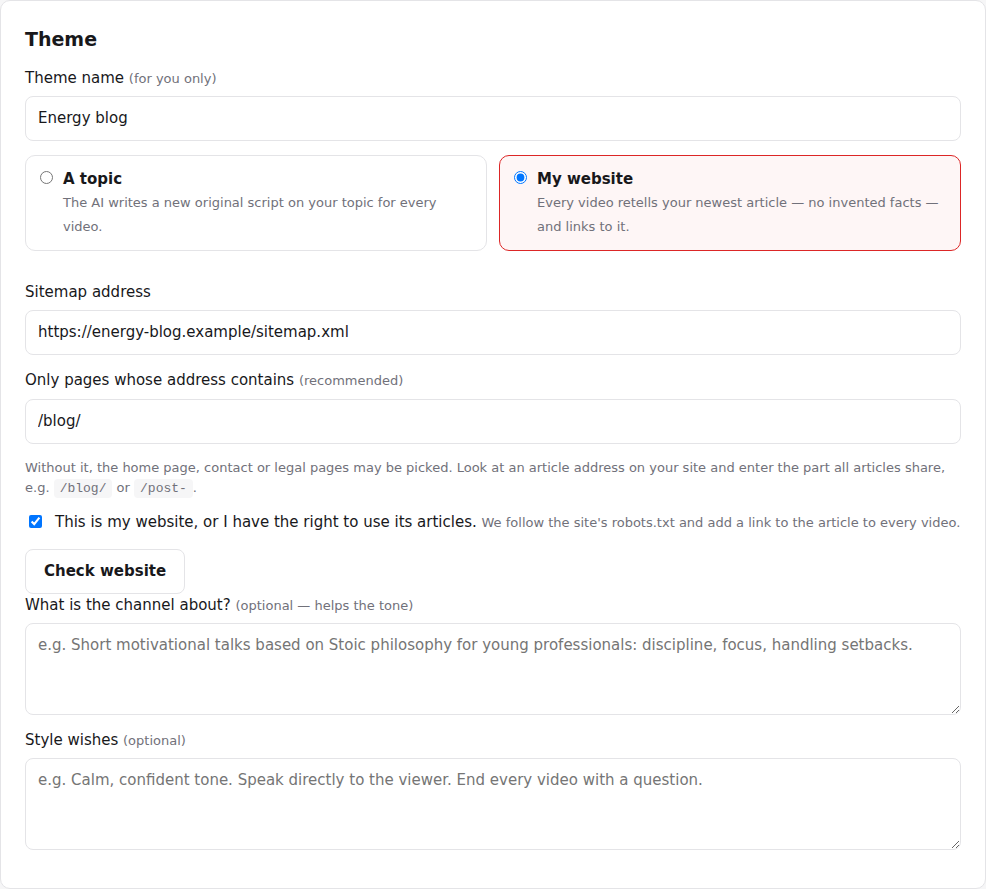
Use this mode to turn your blog into videos. Each video retells one article from your site — no invented facts — and the video description links to the article.
- Sitemap address — usually
https://yoursite.com/sitemap.xml. - Only pages whose address contains (recommended) — the part all your article addresses share,
e.g.
/blog/. Without it, the home page, contact or legal pages may be picked. - Tick This is my website, or I have the right to use its articles.
- Click Check website — we show how many articles we found and which one would be used next.
- Newest articles go first; each article is used only once.
- We respect your site's
robots.txt. - If there is no new article when a video is due, no video is made and nothing is counted toward your plan — we let you know once, and the theme continues when you publish something new.
- Articles in another language are translated into the theme's language.
Step 7 of 11
Footage, music and voice
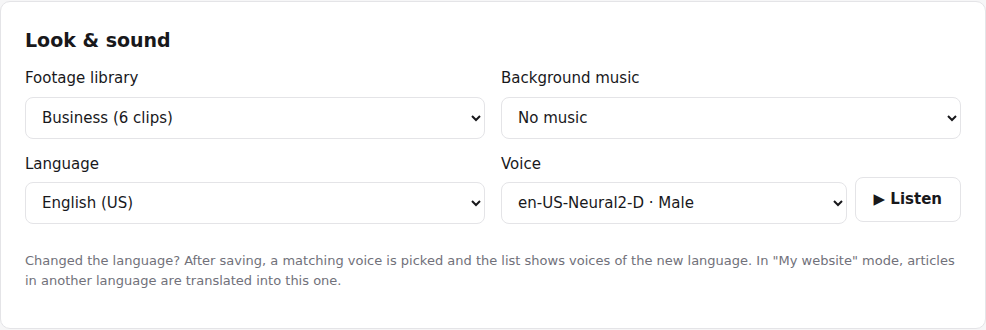
In the Look & sound block:
- Footage library — the style of background clips (business, nature, city…). The clips are licensed for use in your videos.
- Background music — a quiet music bed under the voice, or No music.
- Language — the language of the script and the voice-over.
- Voice — pick a voice and click ▶ Listen to hear a sample before saving.
Step 8 of 11
Schedule and Shorts
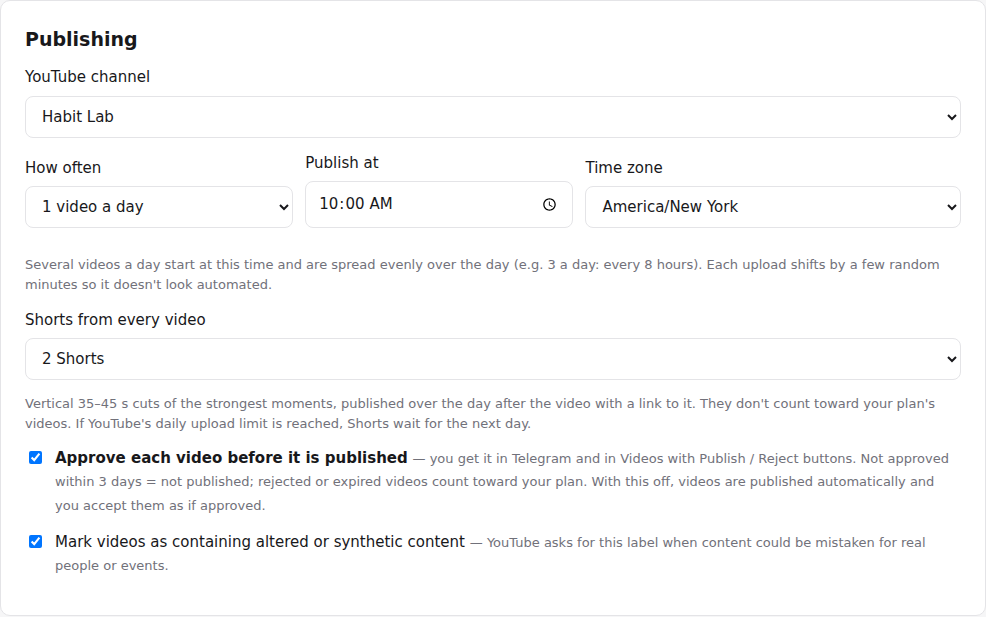
In the Publishing block:
- YouTube channel — where this theme publishes.
- How often — from a few videos a week up to your plan's daily maximum.
- Publish at and Time zone — the time of the first video of the day in your time zone. Several videos a day are spread evenly (e.g. 3 a day: every 8 hours). Each upload shifts by a few random minutes so it doesn't look automated.
- Shorts from every video — vertical 35–45-second cuts of the strongest moments, published during the day after the main video, each with a link to the full video. How many you can choose depends on your plan. Shorts don't count toward your plan's videos.
- Mark videos as containing altered or synthetic content — YouTube's label for content that could be mistaken for real people or events. Leave it on unless you are sure it doesn't apply.
Click Save & start publishing. The first video is prepared right away and published at the next slot. Save as draft keeps the theme without starting it.
Step 9 of 11
Approve videos (optional)
Want to see every video before it goes live? Tick Approve each video before it is published in the theme.
When a video is ready we send it to you in Telegram (with ✅ Publish / 🚫 Reject buttons and a link to watch it) and by email. You can also decide in Videos:
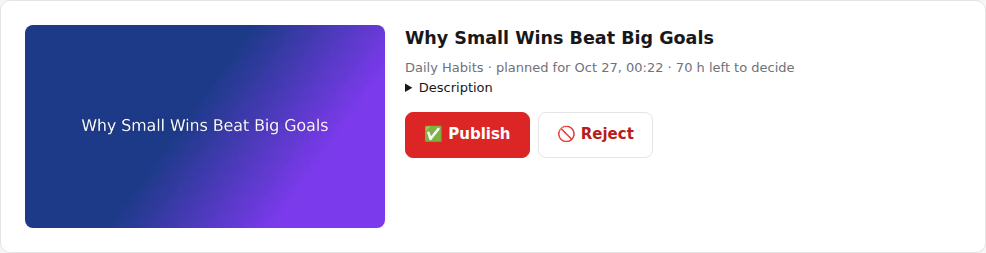
- Publish — the video goes out at its planned time (or right away if that time has passed).
- Reject — the video is not published.
- No answer in 3 days — the video is not published. We remind you after one day.
With approval off, videos are published automatically and you accept them as if approved. Either way, you are responsible for what is published on your channel.
Step 10 of 11
Follow your videos
Videos lists everything your themes produce, newest first, with a link to each published video and its Shorts.
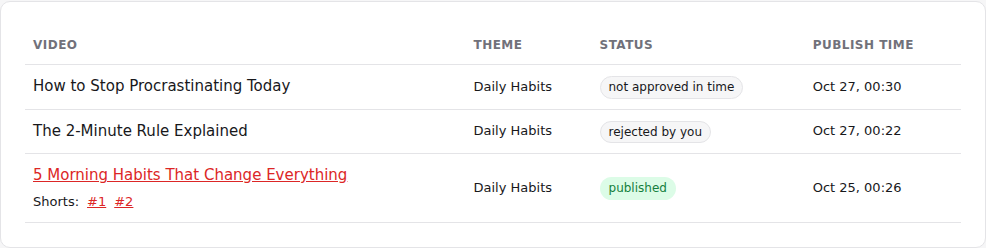
What the statuses mean:
- writing script → recording voice-over → picking footage → rendering — the video is being made (usually within an hour);
- ready — waiting for its slot — done, waits for its publish time;
- published — live on YouTube;
- rejected by you / not approved in time — see step 9;
- failed — not counted — something went wrong on our side; it doesn't count toward your plan and the next video is made as usual.
Step 11 of 11
Billing and limits
Billing shows your plan, videos used this period and when it renews.
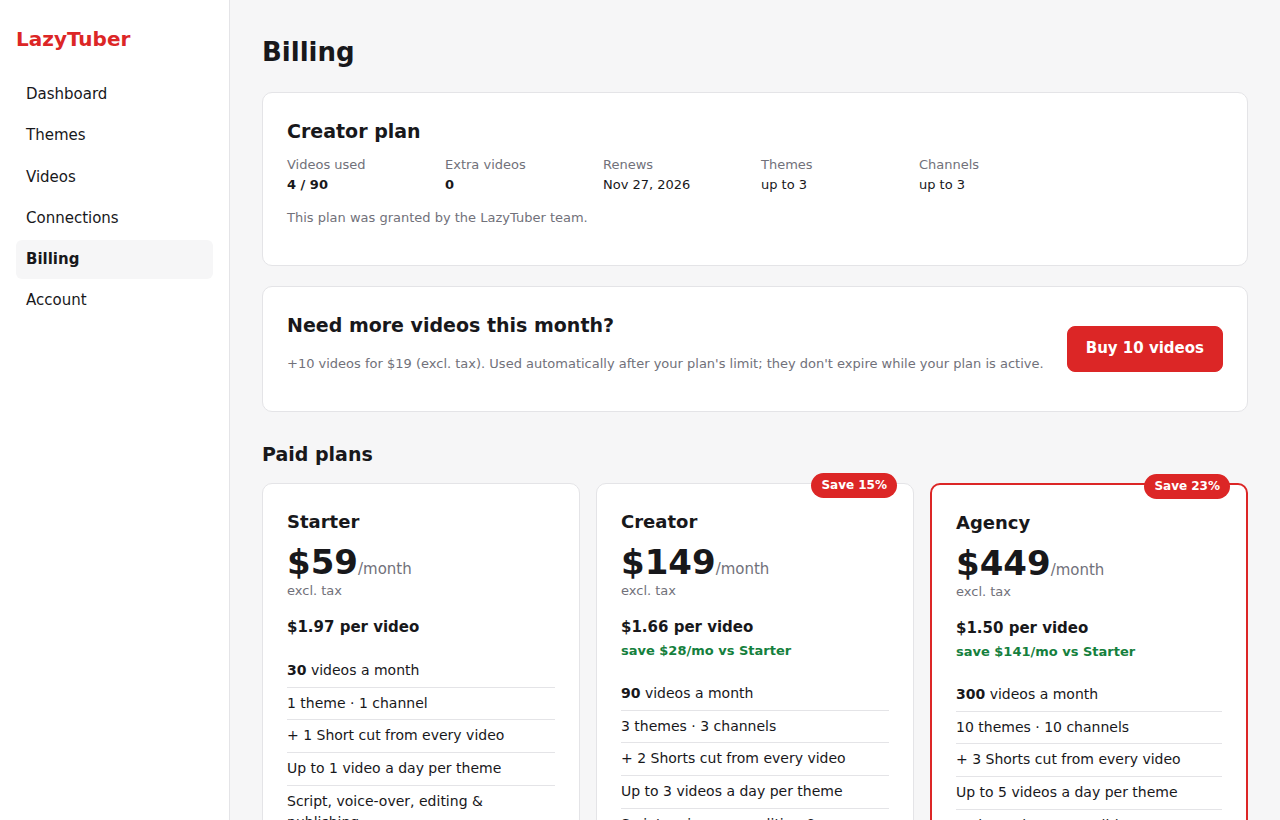
- Need more videos this month? Buy an extra pack — it is used after your plan's limit and doesn't expire while your plan is active.
- Manage subscription opens Stripe: change the plan (the difference is prorated), update the card, download invoices or cancel. After cancelling, the plan works until the end of the paid period.
- If a payment fails, videos keep coming for a few days while you update the card.
- When the monthly limit is reached, themes wait until the next period or an extra pack.
Your name, password and account deletion are in Account.
Invite friends (in the dashboard menu) gives you a personal link. When someone signs up through it and starts a plan, you get 10 bonus videos.
Found a bug or missing something? Open Feedback in the dashboard menu (or send /feedback your message to our Telegram bot).
Every message is read by a person and answered. On the Videos page you can also rate each video with 👍 or 👎, which tells us what to improve. Or write to
support@ceoneuro.com.